Introduction

Our application integrates the HubSpot CRM with the Sumoquote application. All you need to do is to create a deal in HubSpot and connect your deal with SumoQuote using open authentication. Once it is connected, it takes care to sync each move you take for writing quotations in SumoQuote. It gives you a built-in feature to manage your reports in SumoQuote. Or if you try to do anything relevant e.g. Quote title, introduction or any other custom page, it will automatically sync your changes directly in HubSpot out of the box. It also gives you the option to view real-time signed quotations download reports in PDF and other items details that were added in the quotation. The application also has options to manage settings for connectivity, e.g. Sync everything between the two systems out of the box or disconnect the link between two applications.

Requirements

  • Hubspot Account
  • SumoQuote Account

Features

  • Connecting to SumoQuote
  • Deal Data Syncronization
  • Generate Quotations
  • Send Quotations to Customer
  • Review and Sign Quotations
  • View Approved Items
  • Download Quotations

Installations

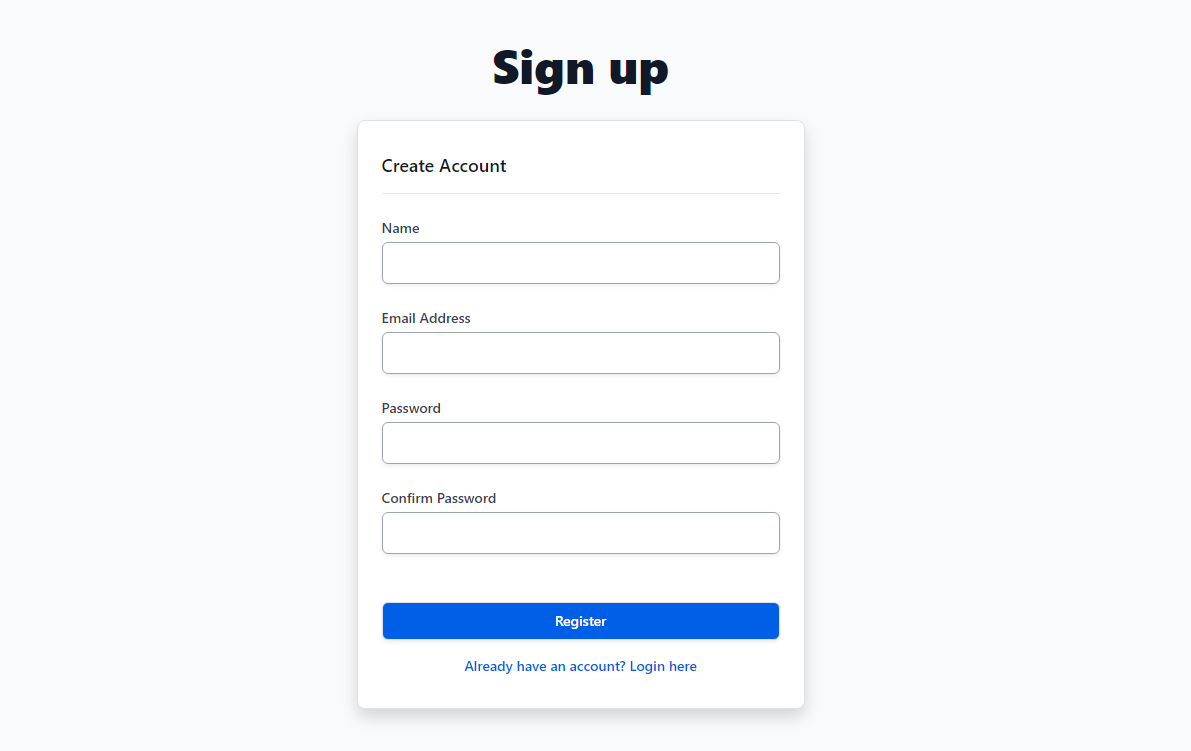
  • Step-1 : Go to SumoQuote by RBP and Register (Login if account already created). signup
  • Step-2 : After signing up, you will be redirected to the dashboard page and the page will show like this if it is your first time. signup
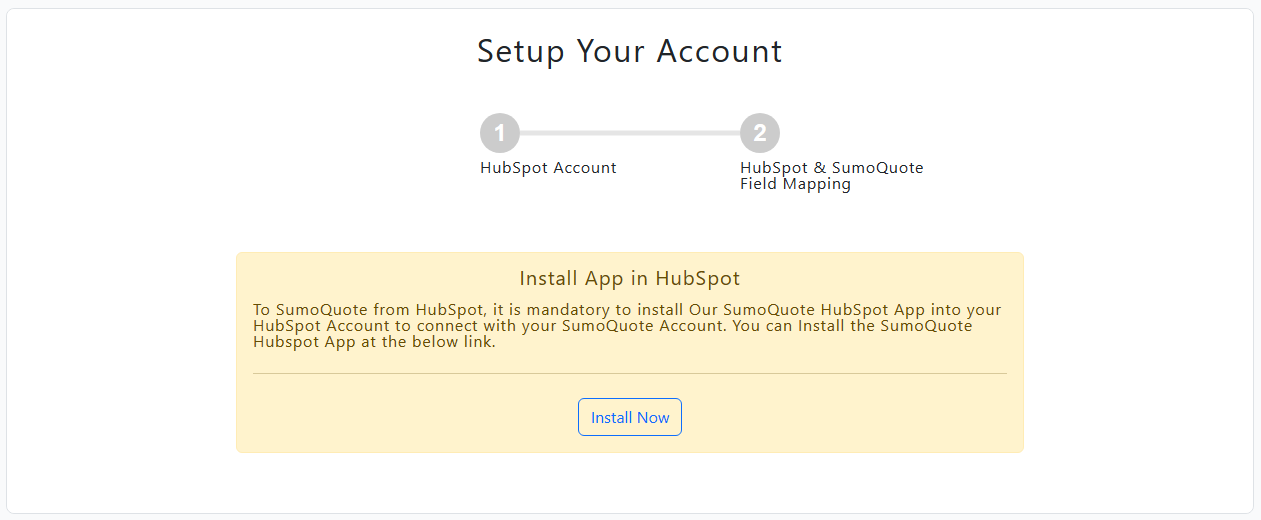
  • Step-3 : Please click install button for HubSpot installations Process.

Configuration

  • Step-1 : After the installations process success then Select HubSpot Account from Accounts List and Click Next.
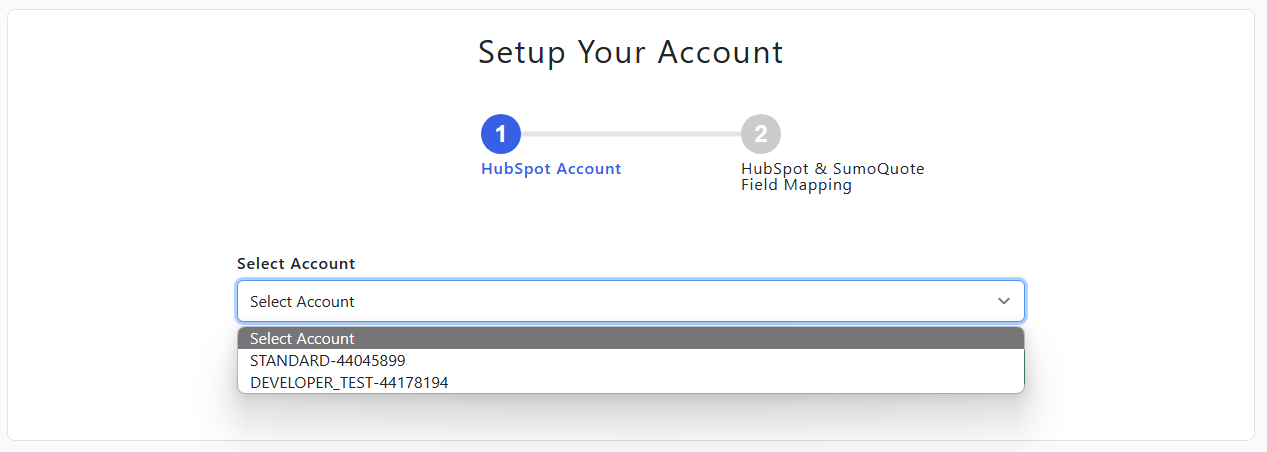
    Setup Account Step
  • Step-2 : HubSpot & SumoQuote Field Mapping


    Select HubSpot properties with SumoQuote fields. If HubSpot properties are not in your account you can select "Create New Property" and click Next & Submit.
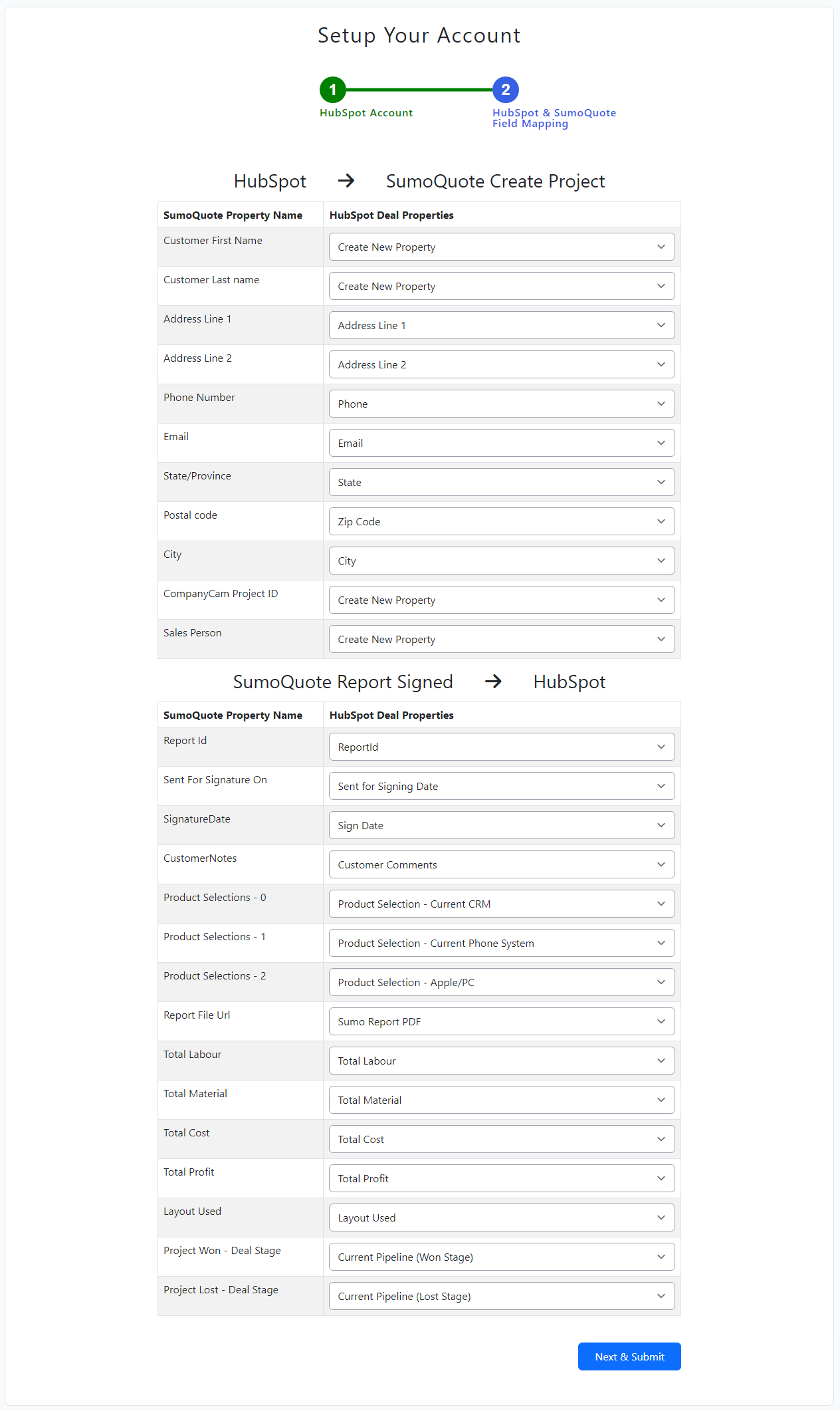
    HubSpot & SumoQuote Field Mapping
  • Step-3 : Click "Auto Create New HubSpot Properties" button to create new hubspot properties

    After create new properties, it's redirect to field mapping page and click again "Next & Submit" button.
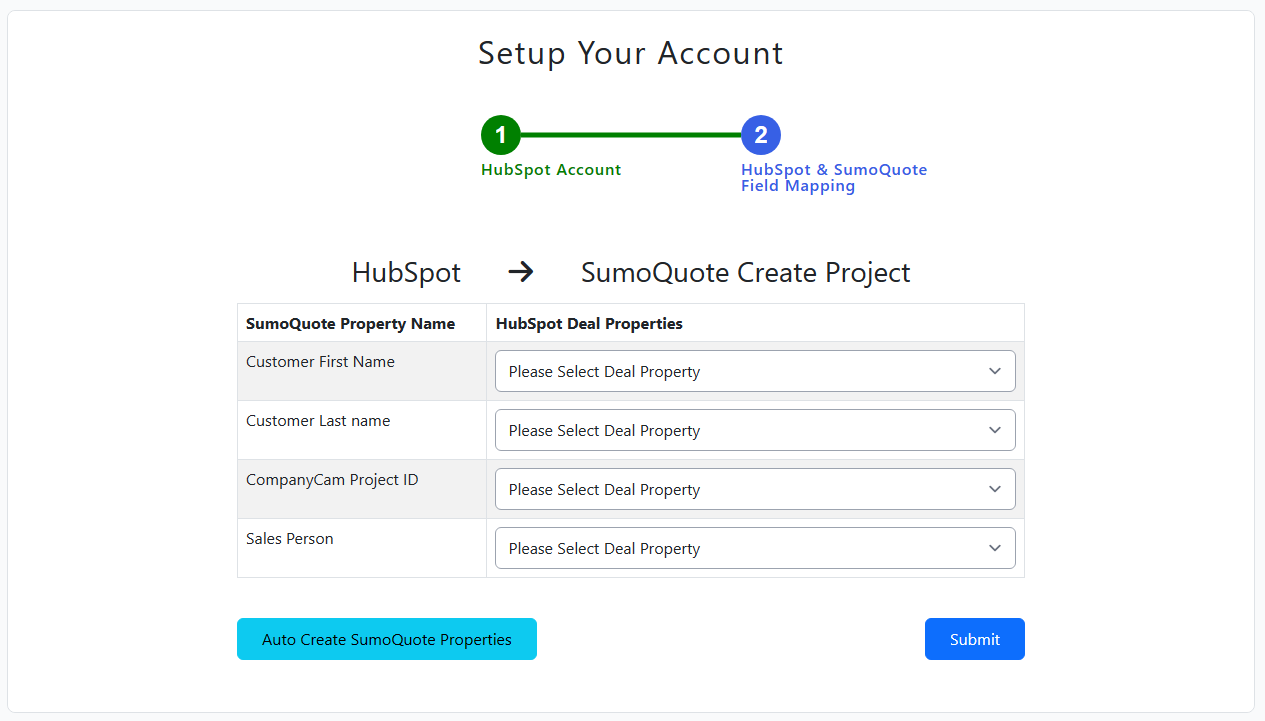
    HubSpot & SumoQuote Field Mapping
  • Step-3 : Now Field mapping process is done.
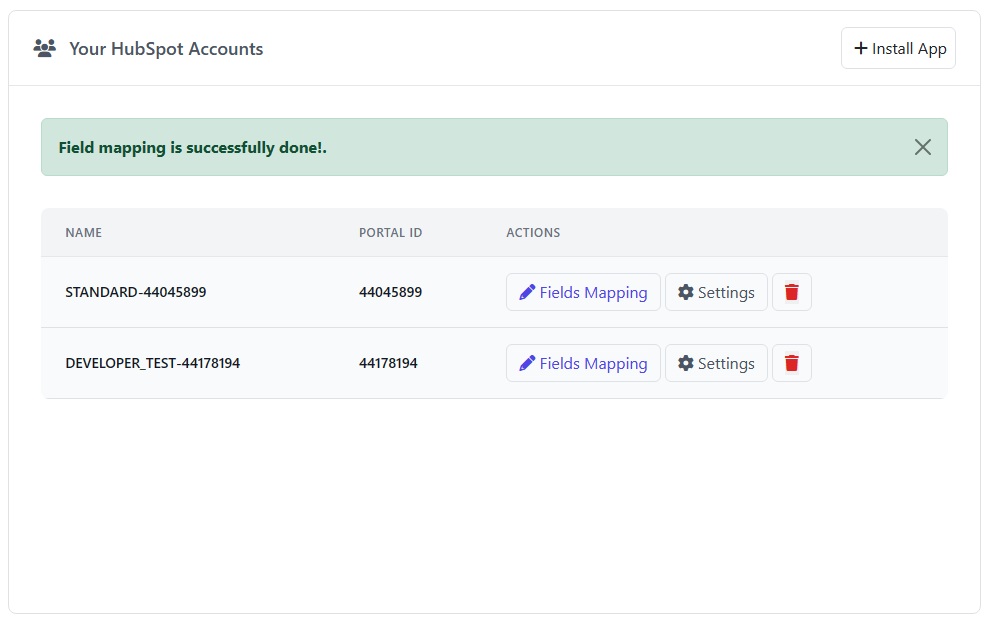
    HubSpot & SumoQuote Field Mapping

HubSpot & SumoQuote

HubSpot's CRM platform has all the tools you need for marketing, sales, content management, operations, and customer service. Each product in the platform is powerful alone, but the real magic happens when you use them together.

Connect SumoQuote

  • Go to HubSpot account and open any deal record.
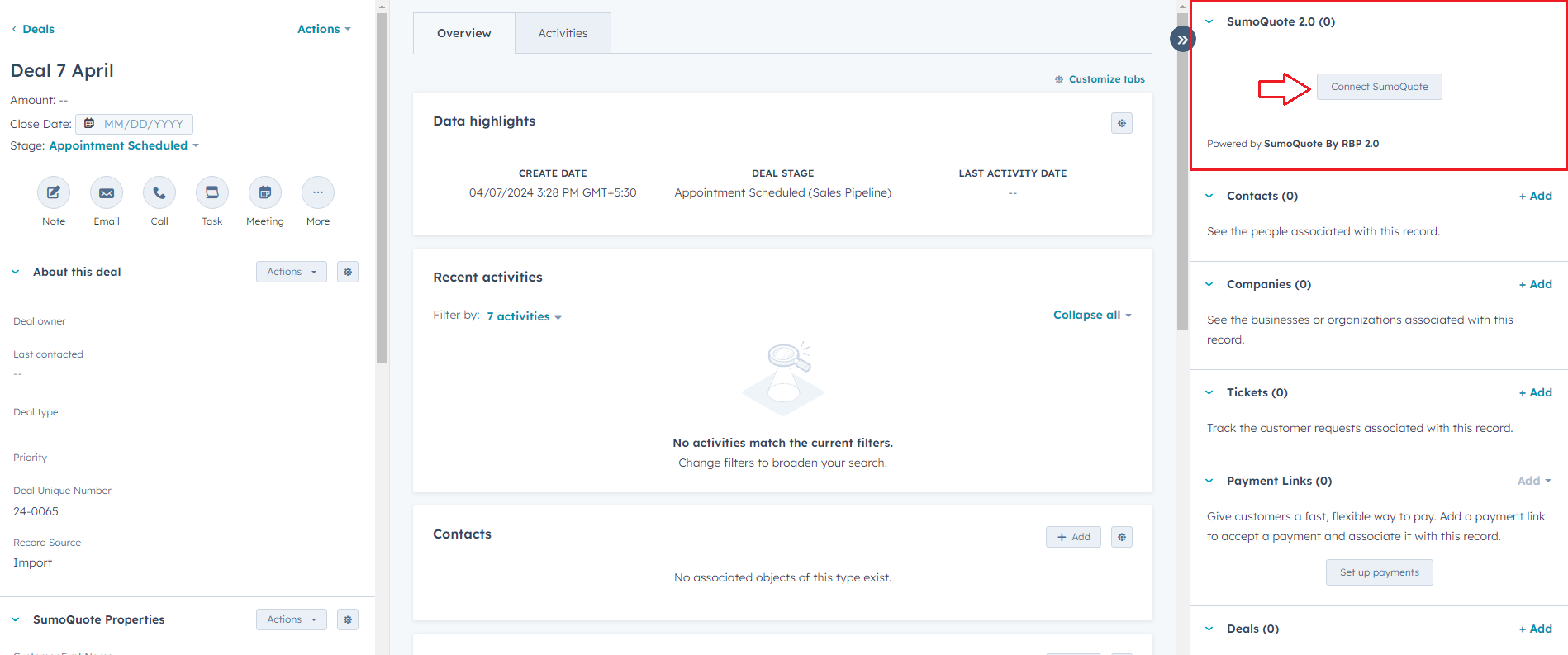
  • Click on "Connect SumoQuote" Button in "SumoQuote 2.0" CRM Card in right side panel. Connect SumoQuote

Create Project

  • Go to HubSpot account and open any deal record.
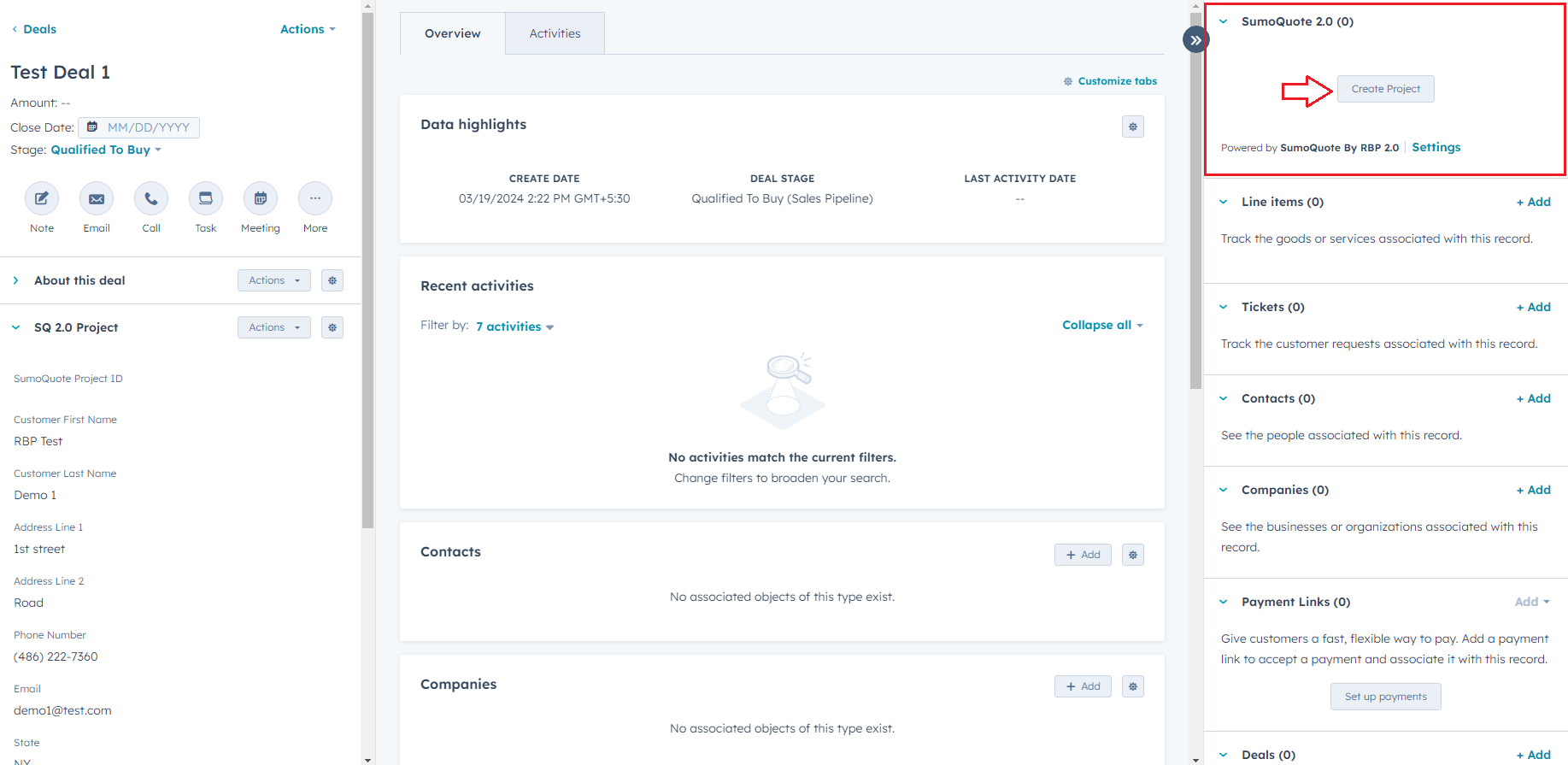
  • For create proejct in SumoQuote account, click on "Create Project" Button in "SumoQuote 2.0" CRM Card in right side panel. SumoQuote Create Project

View Project

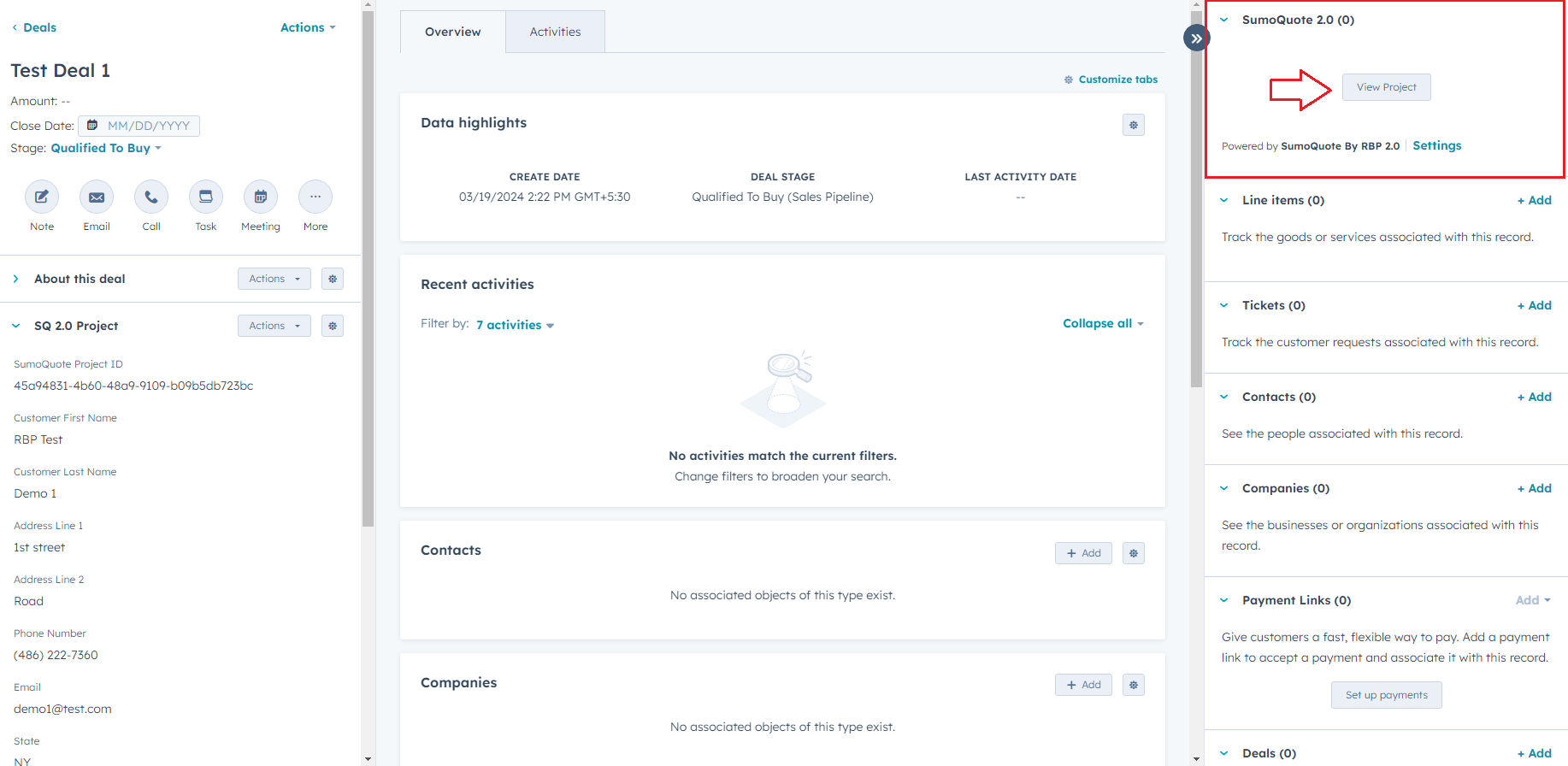
  • For view proejct, click on "View Project" Button in "SumoQuote 2.0" CRM Card in right side panel. SumoQuote View Project

Create Report - Generate Quotations

  • Once your accounts are connected through our system, you may generate quotations directly through our HubSpot integration portal or directly through Sumoqoute account, our system will sync your data out of the box.
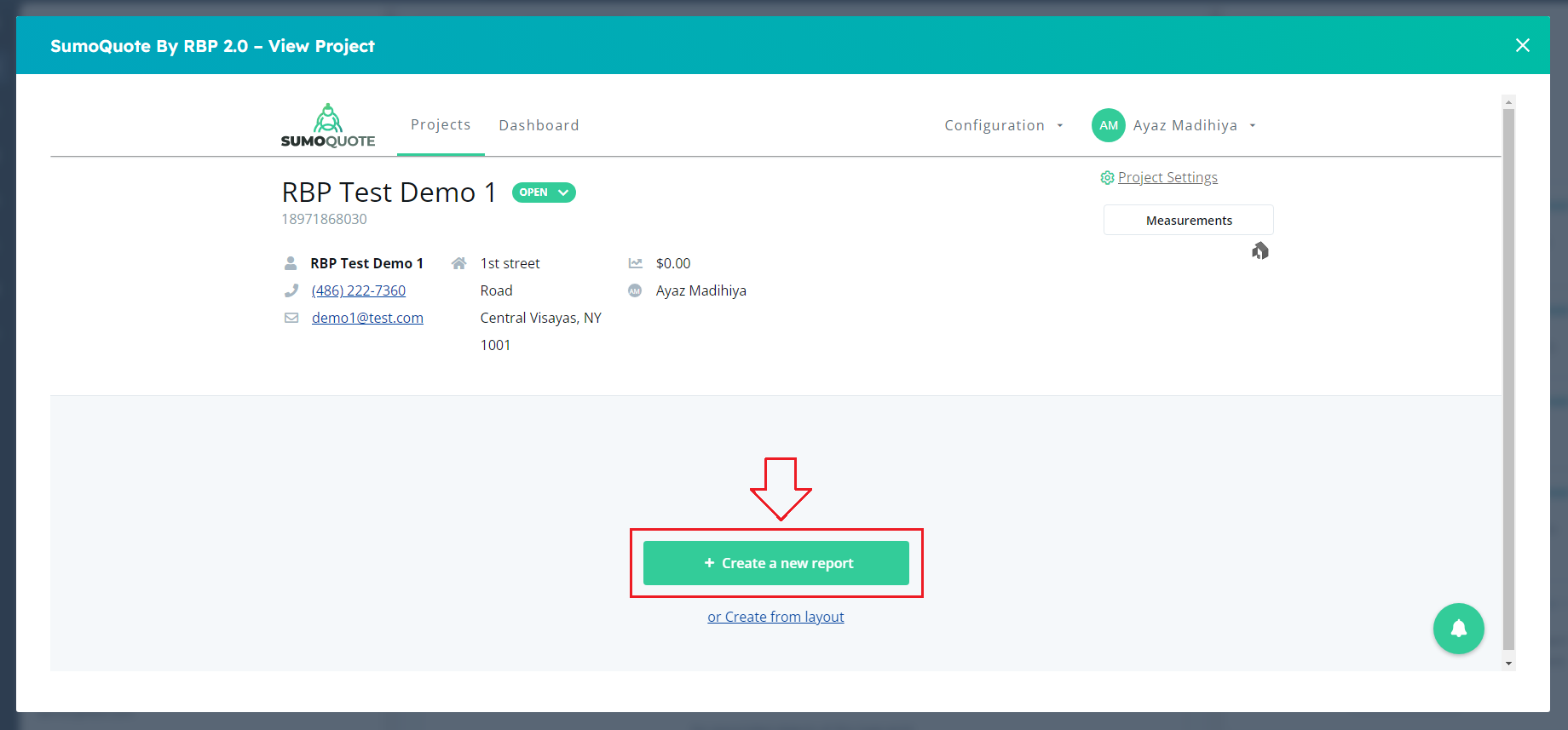
  • For Create SumoQuote Report, click on "View Project" Button in "SumoQuote 2.0" CRM Card in right side panel. In open popup window, click on "Create a new report" button. SumoQuote View Project

View/Edit Report

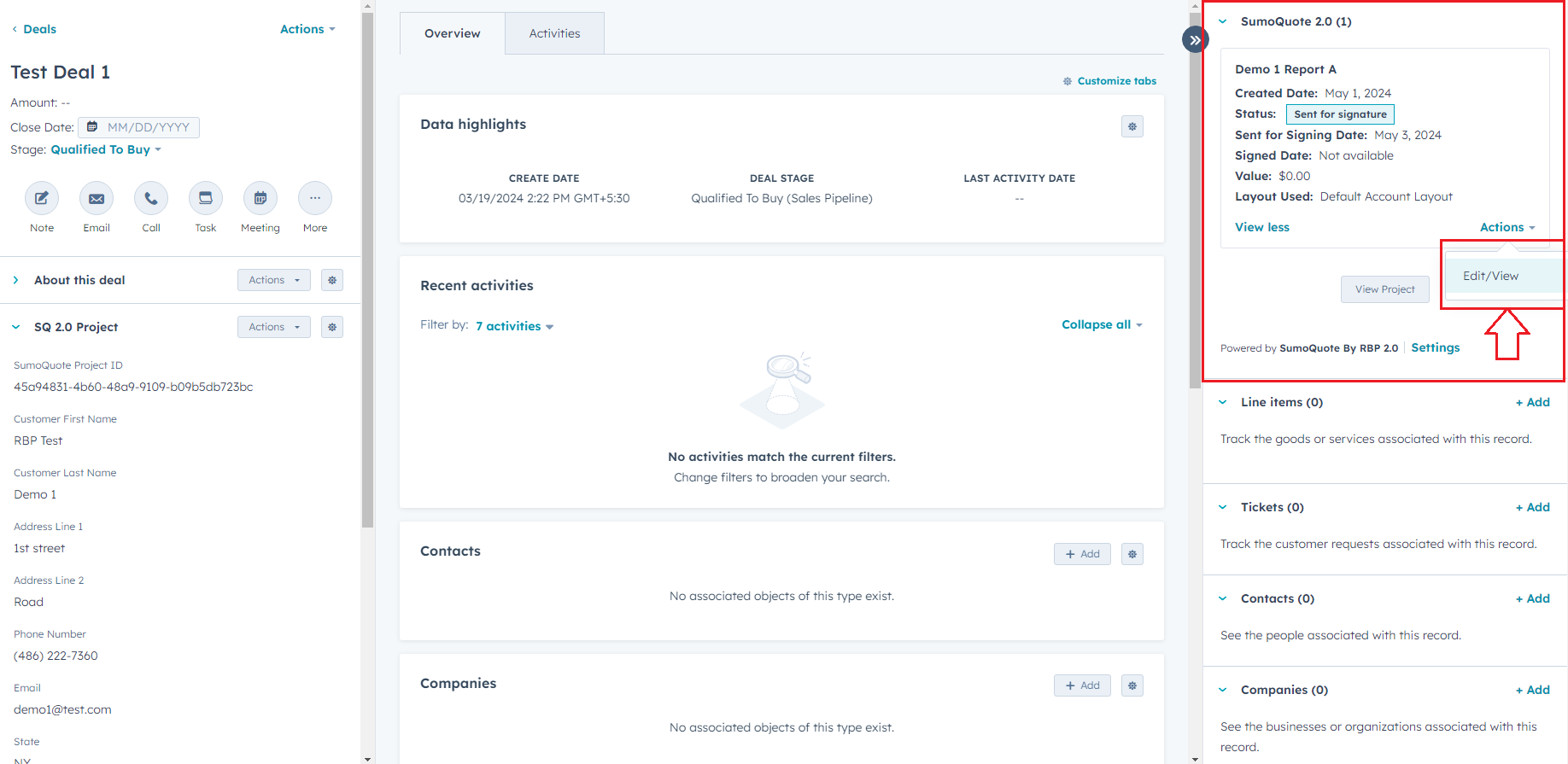
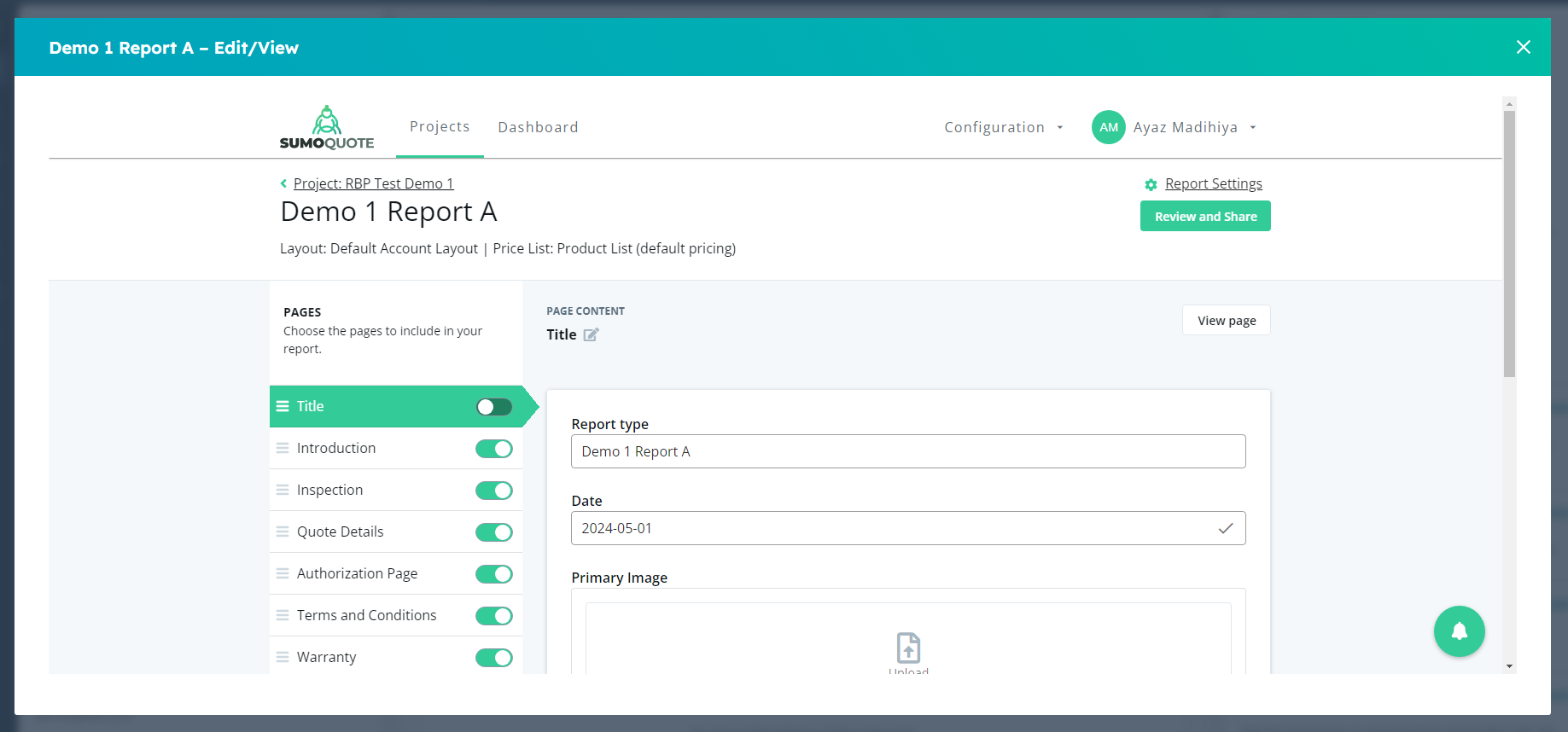
  • For Edit or View SumoQuote Report, click on "Edit/View" from action dropdown of any report. it's open popup window, here you can edit or view SumoQuote report. SumoQuote Edit View Report SumoQuote Edit View Report

Review & Sign Quotations

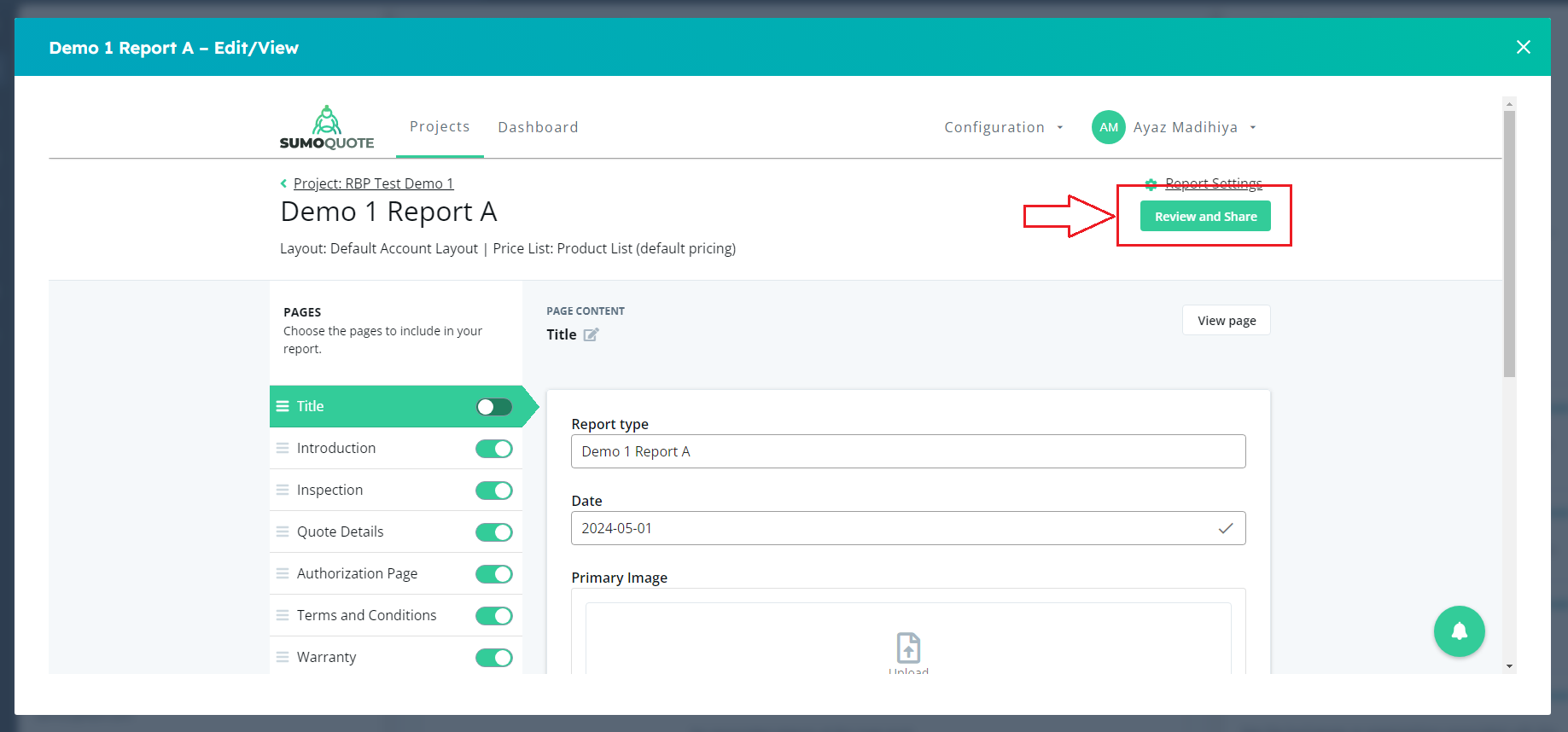
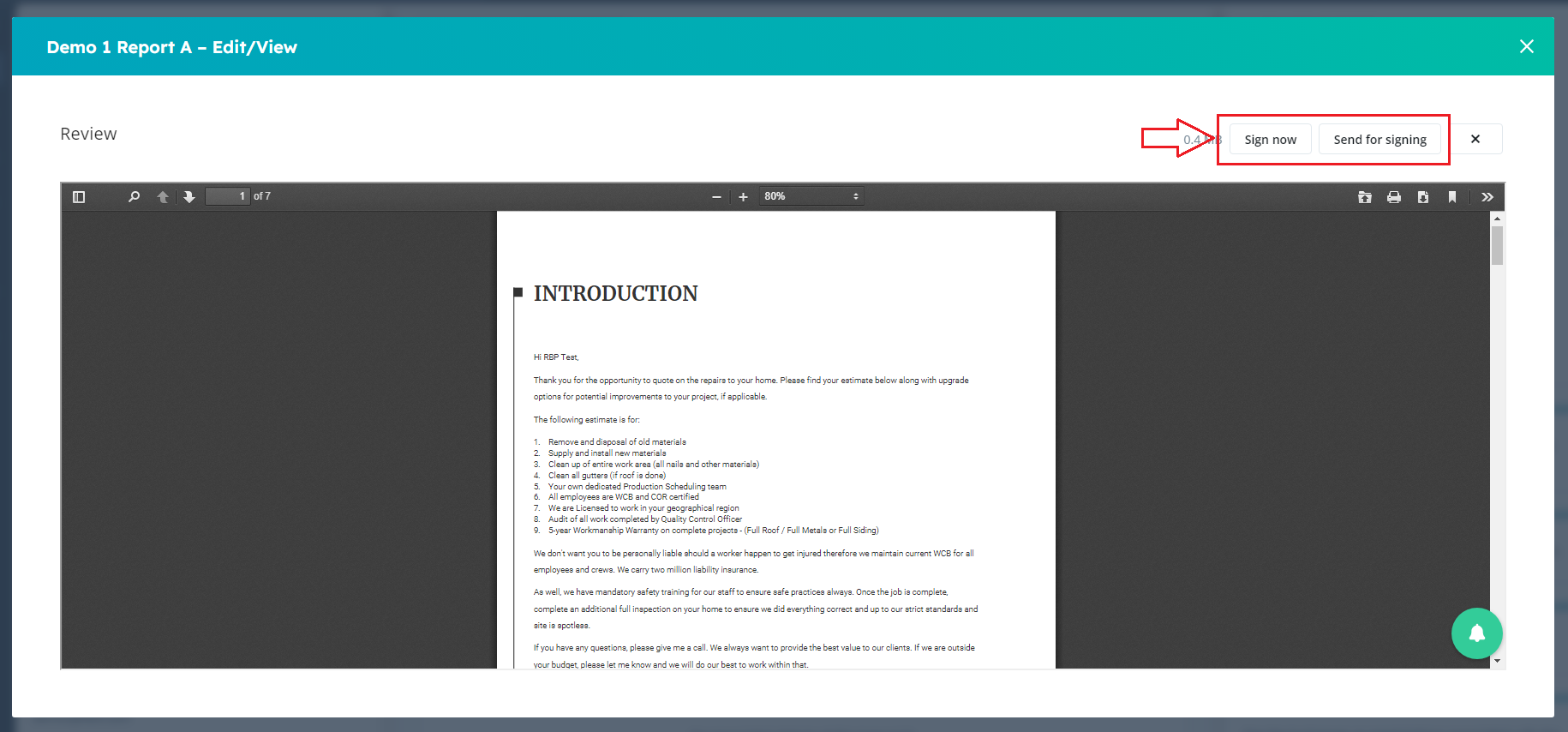
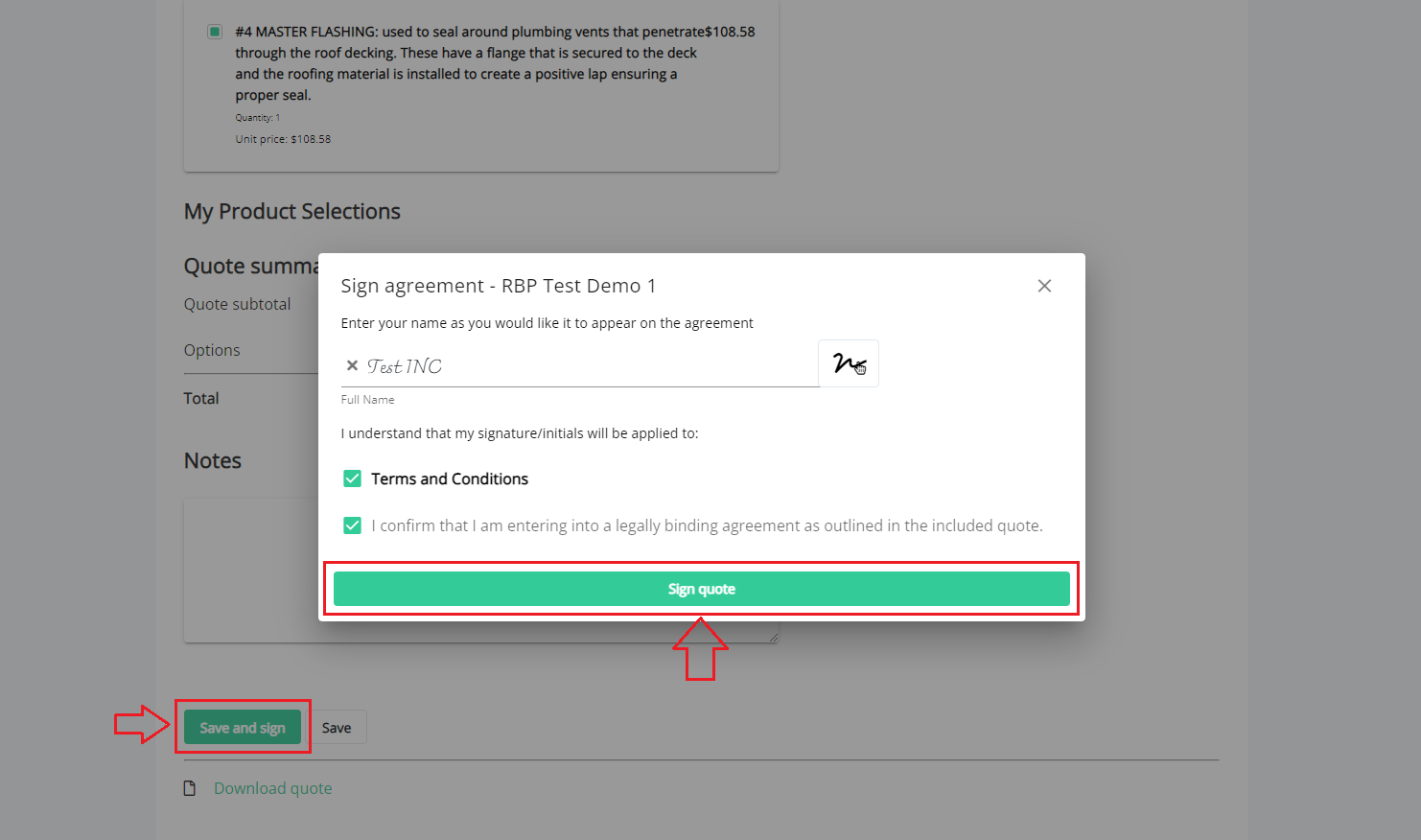
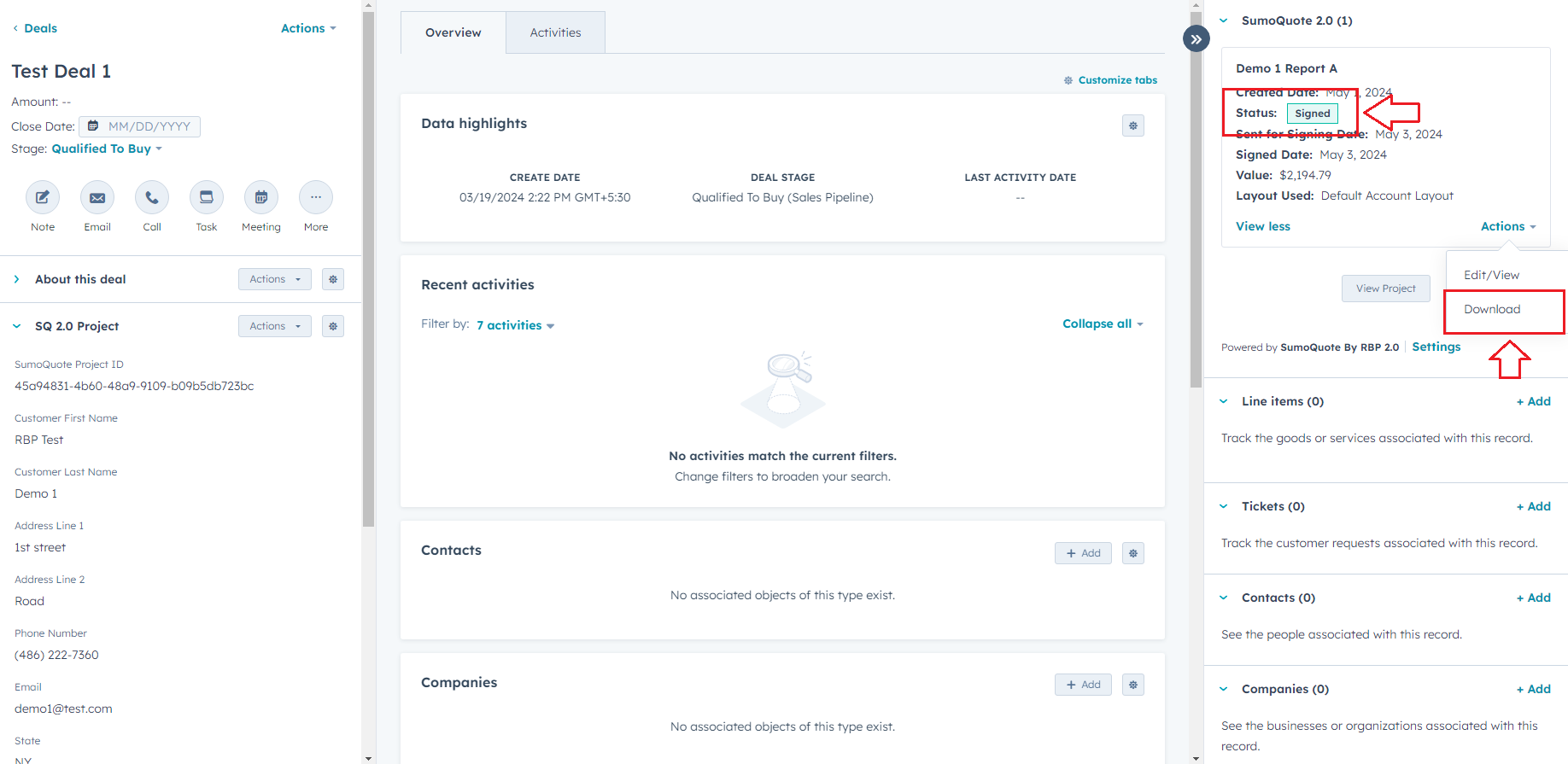
  • Once you have created the quotation, you may send it for signing to customer, and it will update report status to HubSpot accordingly. SumoQuote Review Report SumoQuote Send Report SumoQuote Sign Report SumoQuote Sign Download Report

Download Quotations

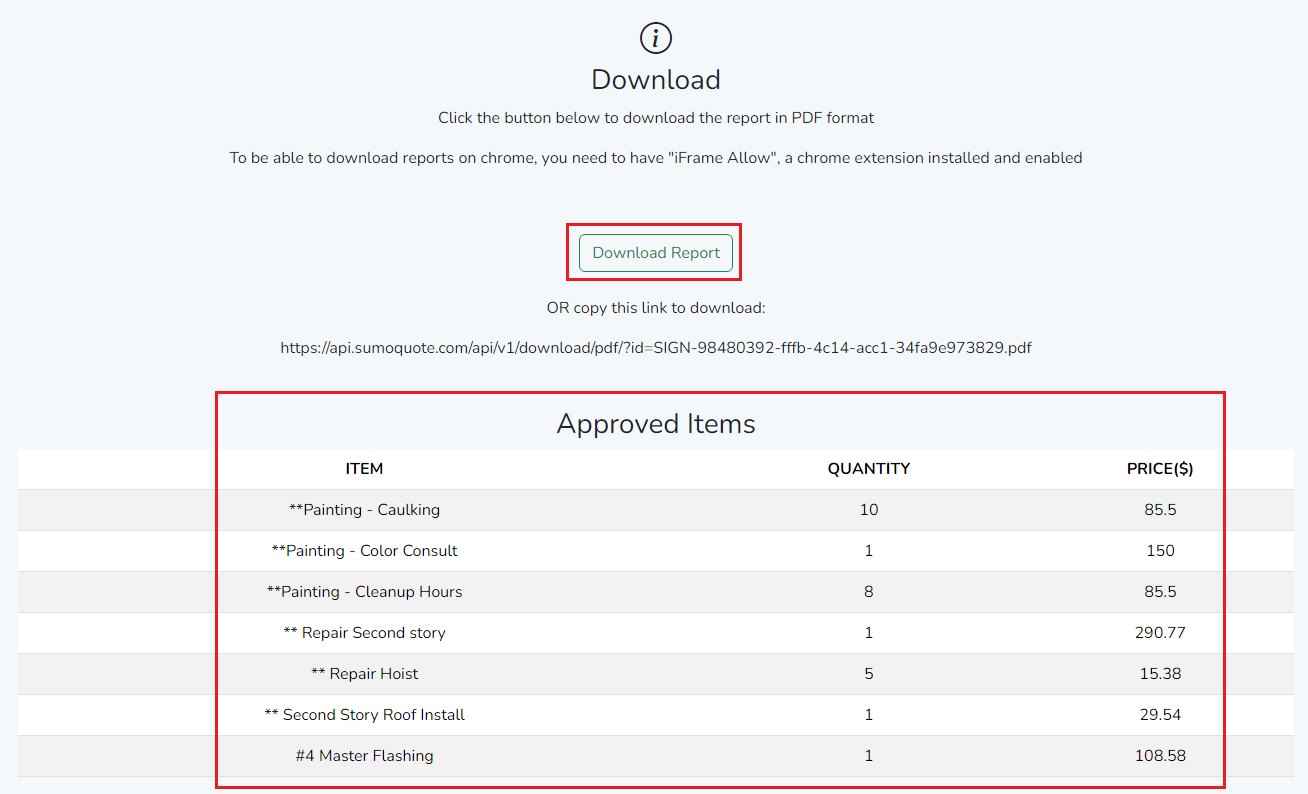
  • Once customer signed on quotation, and it will update report status in HubSpot and you can download and view signed report pdf & approved items. SumoQuote Download Report

Sync Deal Data

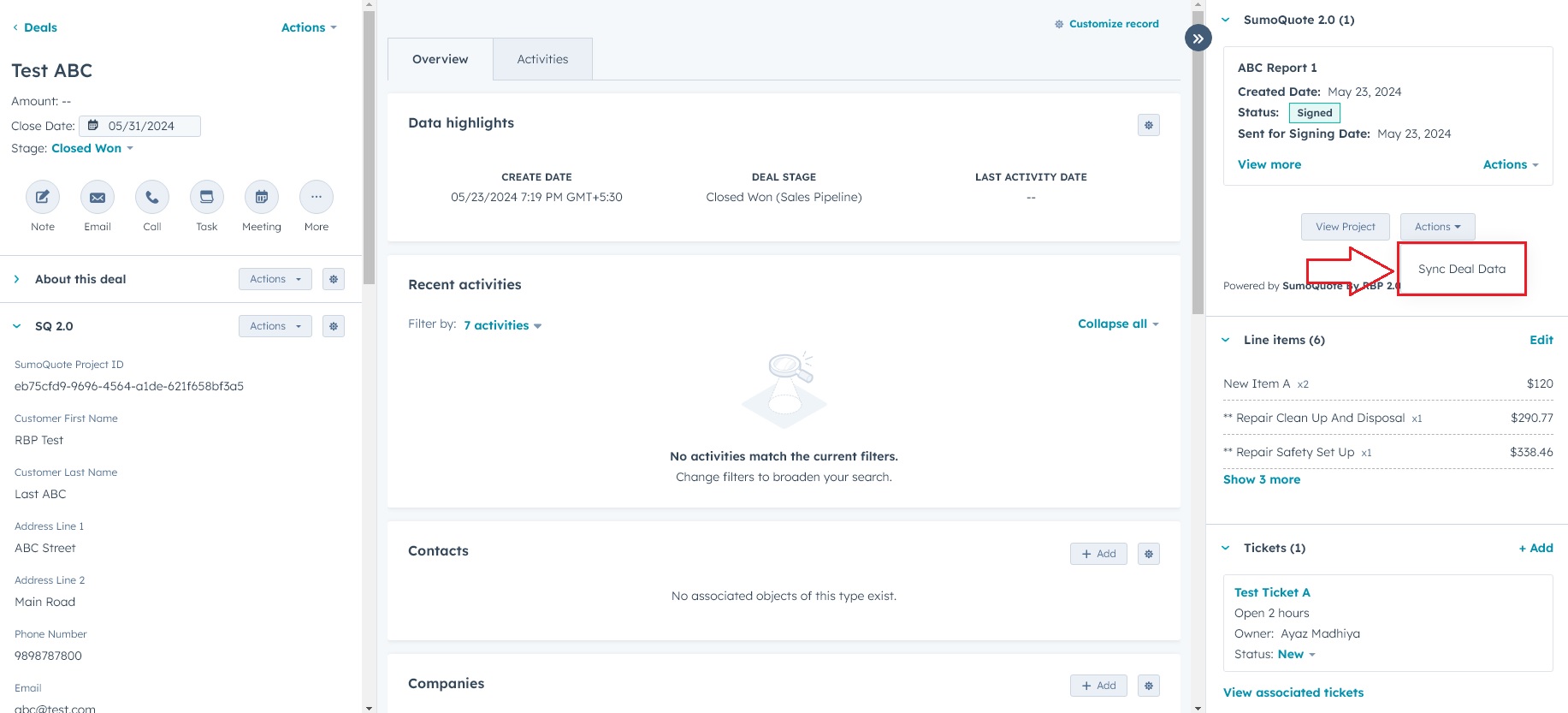
  • For Syncronization HubSpot Deal data with SumoQuote Project, you can click on link from any deal's "SumoQuote 2.0" CRM Card. SumoQuote Sync Deal

Settings

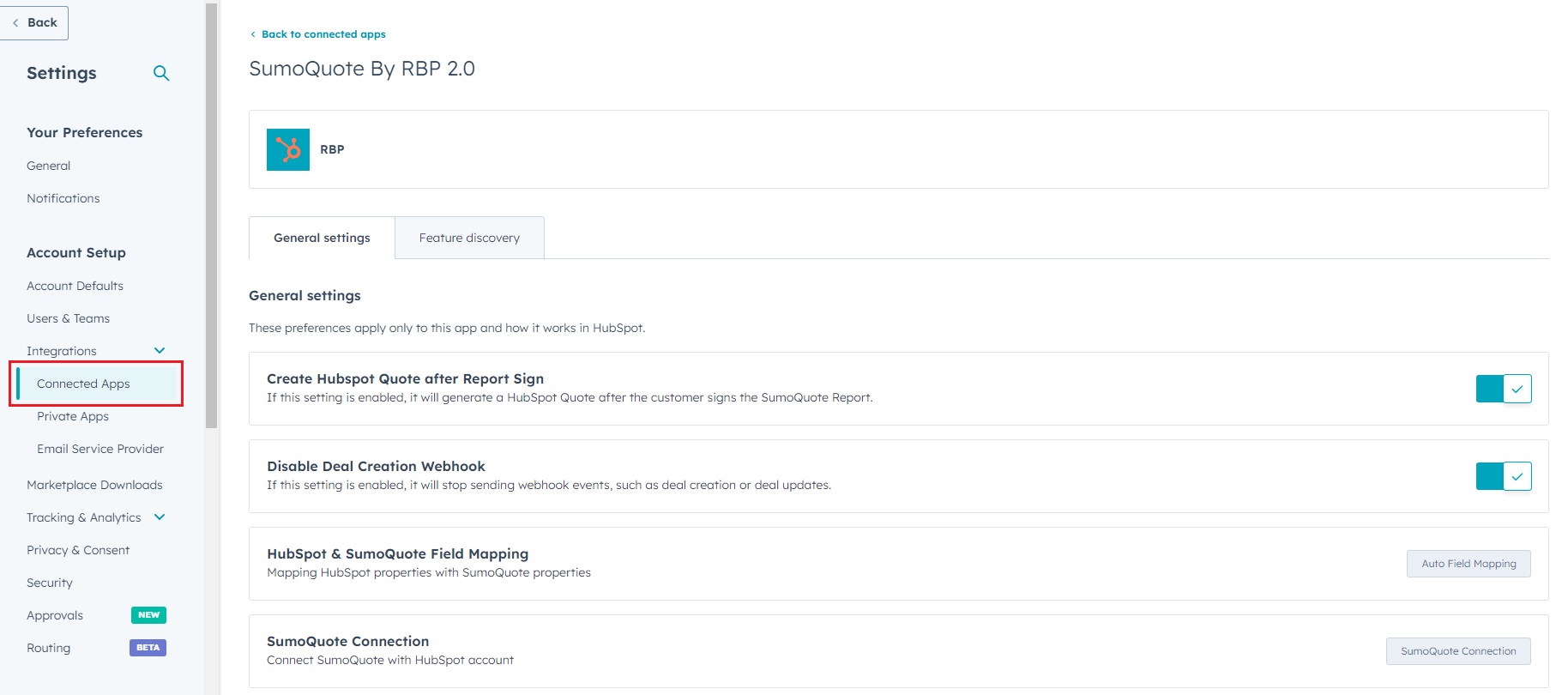
  • Setting for Create Hubspot Quote after Report Sign.
  • Setting for Disable Deal Creation Webhook.
  • Connect/Disconnect SumoQuote Connection.
  • HubSpot & SumoQuote Field Mapping
SumoQuote Deal Setting

RBP Terms & Conditions

Thank you for your interest in SumoQuote by RBP, a HubSpot Marketplace App. These terms and conditions ("Terms") govern your access to and use of SumoQuote by RBP and any services, websites, and applications offered by RBP (collectively, the "Service"). By accessing or using the Service, you are agreeing to be bound by these Terms. If you do not agree to these Terms, you may not access or use the Service.


Accounts

In order to access certain features of the Service, you may need to create an account. You are responsible for maintaining the confidentiality of your account and password, and you are responsible for all activities that occur under your account. RBP will not be liable for any loss or damage arising from your failure to comply with this requirement.


Use of the Service

You may use the Service only in compliance with these Terms and all applicable laws. You may not use the Service for any illegal or unauthorized purpose. You may not use the Service to transmit any viruses or other harmful computer code.


Intellectual Property

The Service and all content and materials included on the Service, including but not limited to text, graphics, logos, images, and software, are the property of RBP or its licensors and are protected by copyright and trademark laws. You may not use any content or materials on the Service for any commercial purpose without the express written consent of RBP.


Disclaimer of Warranties

The Service is provided on an "as is" and "as available" basis. RBP makes no representations or warranties of any kind, express or implied, as to the operation of the Service or the information, content, materials, or products included on the Service. RBP will not be liable for any damages of any kind arising from the use of the Service, including but not limited to direct, indirect, incidental, punitive, and consequential damages.


Indemnification

You agree to indemnify and hold RBP and its affiliates, officers, agents, and employees harmless from any claim or demand, including reasonable attorneys' fees, made by any third party due to or arising out of your use of the Service, your violation of these Terms, or your violation of any rights of another.


Termination

RBP reserves the right to terminate your access to the Service at any time and for any reason.


Governing Law

These Terms and your use of the Service will be governed by and construed in accordance with the laws of the governing State, without giving effect to any principles of conflicts of law.


Changes to the Service and These Terms

RBP reserves the right to make changes to the Service and these Terms at any time. Any changes will be effective immediately upon posting to the Service. Your continued use of the Service after such changes have been posted will be deemed to be your acceptance of the changes.


Entire Agreement

These Terms constitute the entire agreement between you and RBP with respect to the Service and supersede all prior or contemporaneous communications and proposals, whether oral or written.


Waiver of Rights

You acknowledge and agree that any rights not expressly granted to you in these Terms are reserved by RBP.


Severability

If any provision of these Terms is found to be invalid or unenforceable, that provision will be enforced to the maximum extent possible, and the remaining provisions will remain in full force and effect.


No Waiver

The failure of RBP to exercise or enforce any right or provision of these Terms will not constitute a waiver of such right or provision.


Assignment

These Terms, and any rights and licenses granted hereunder, may not be transferred or assigned by you, but may be assigned by RBP without restriction.


Contact Us

If you have any questions about these Terms or the Service, please contact us through the marketplace.

or mail us at sumo@roofingbusinesspartner.com